SwiftPen Surface Pen/Stylus Radial Menu & Hotkey Launcher
A downloadable tool for Windows
A radial quick launch app for styluses. Made to fix the lack of customization with the Surface pen/Other Drawing Pens. Fills the gap the surface pen has with lack of hotkeys, customization of the top button functions. Should work on any stylus that supports launching applications. Just link SwiftPen’s single, double, or hold launcher EXEs to your stylus buttons.
Built for people searching for Surface Pen hotkeys, button remapping, radial menus, and better stylus shortcuts on Windows. Also works on Wacom Cintiq 16 and pretty much any other stylus that can run executables.
- Radial overlay for pen/stylus
- Single / double / hold gesture actions
- Multi-page radial menus with < > page controls
- App-specific profiles and auto-profile switching
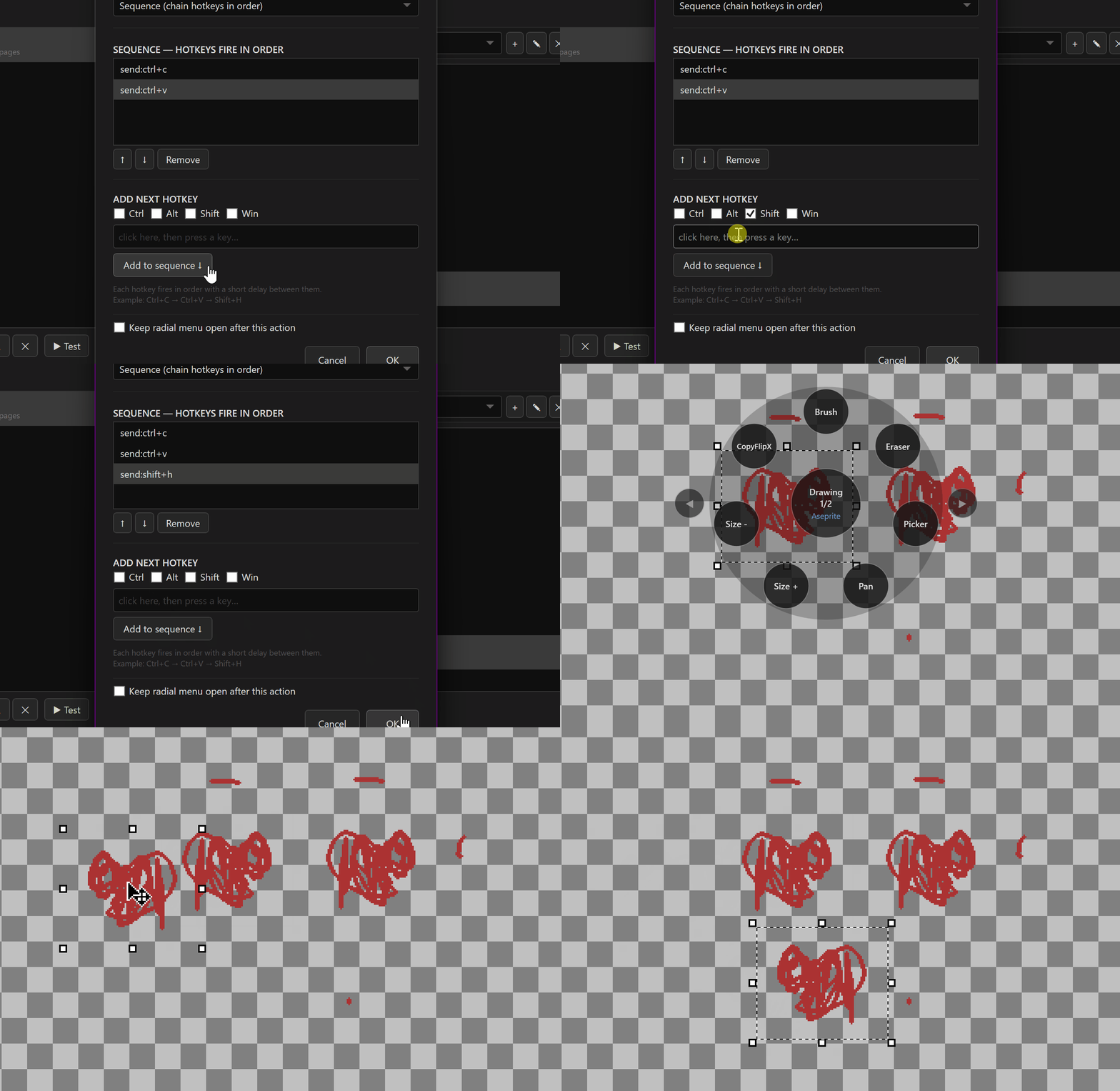
- Hotkeys, sequences, app launchers, window placement, open folders, run shell script and layout navigation
- Built-in preset library: copy, paste, undo, save, OSK, touch keyboard, snip, task view
- Pass-through mode for direct actions without opening the radial menu
Passthrough mode - For example: single click can send K to open a custom tool in Aseprite, while double click opens the radial panel.

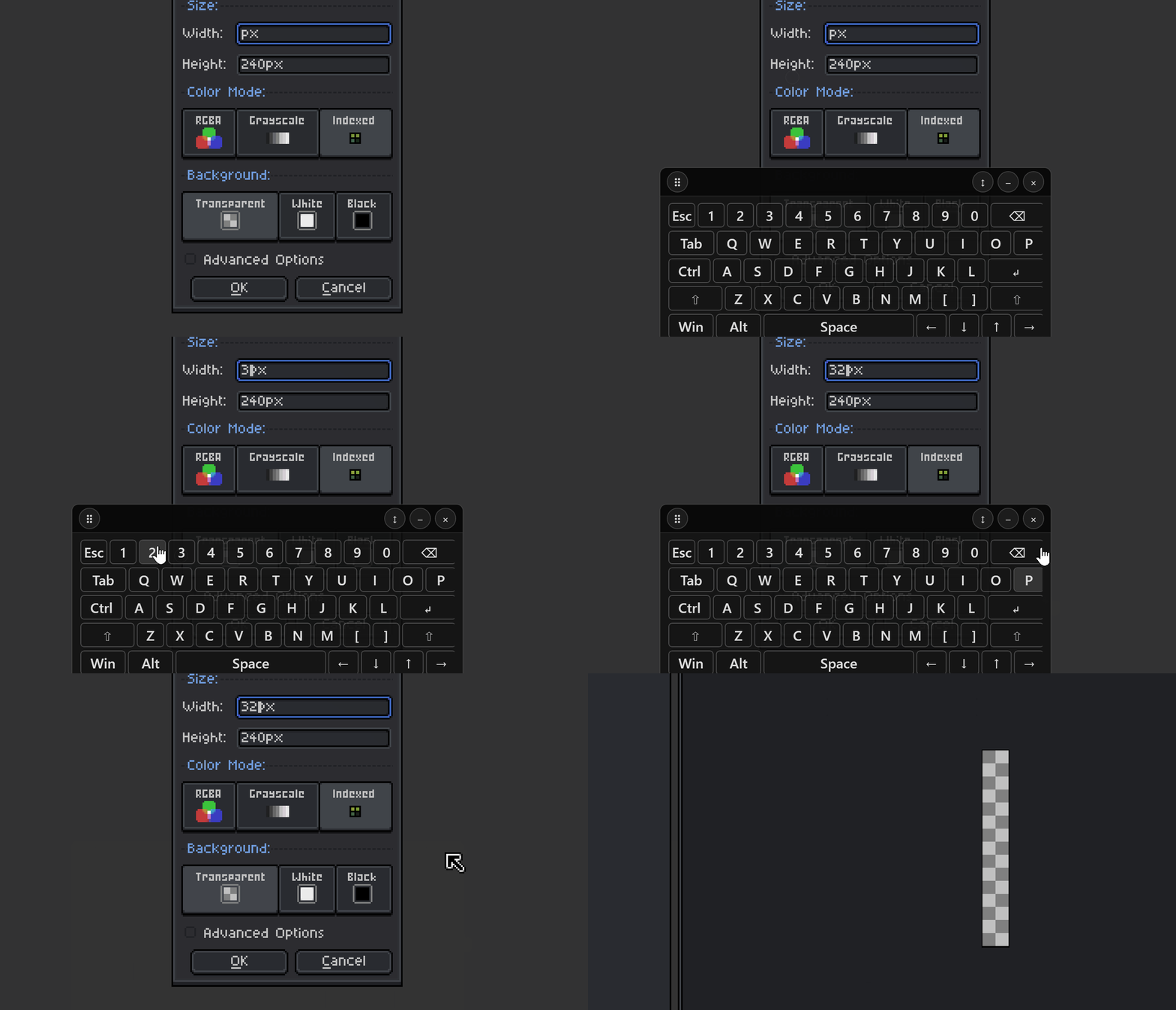
There's also a built in on screen keyboard. Got a little annoyed with the windows one not activating in custom UI's like asesprites. Can be minimized and docked for easier access.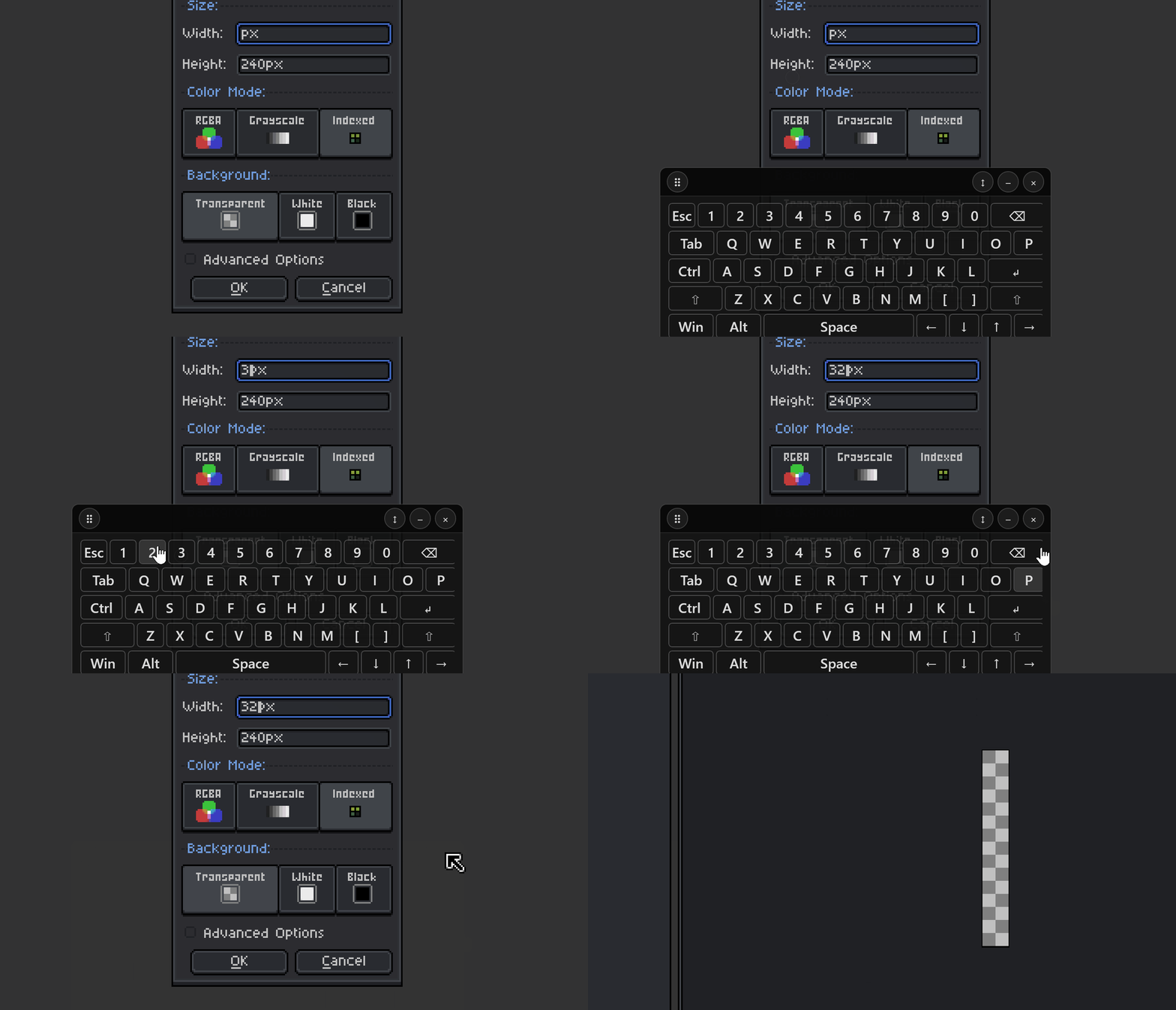
Custom profiles per app. Has an auto-switch profile feature and manual overrides.
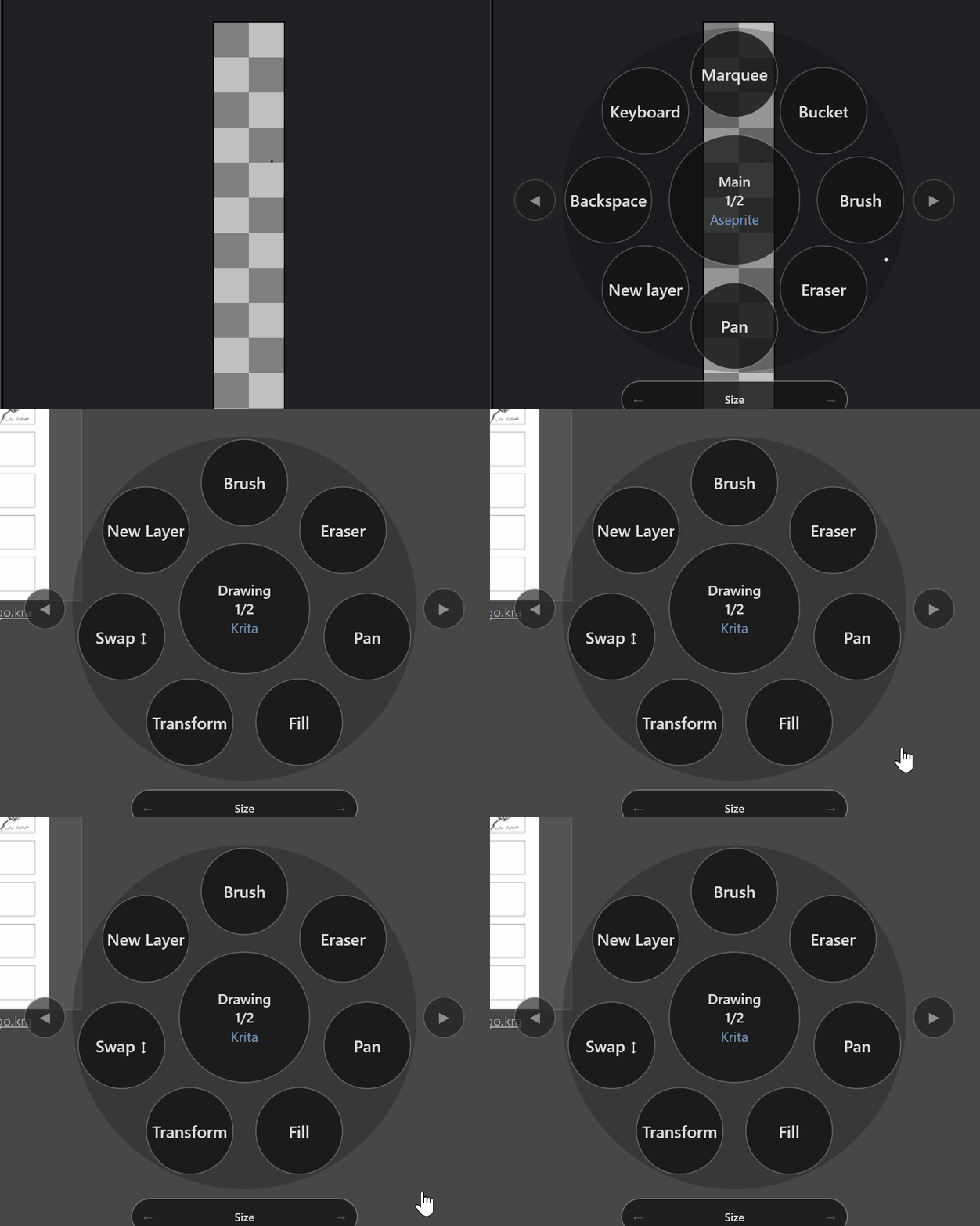
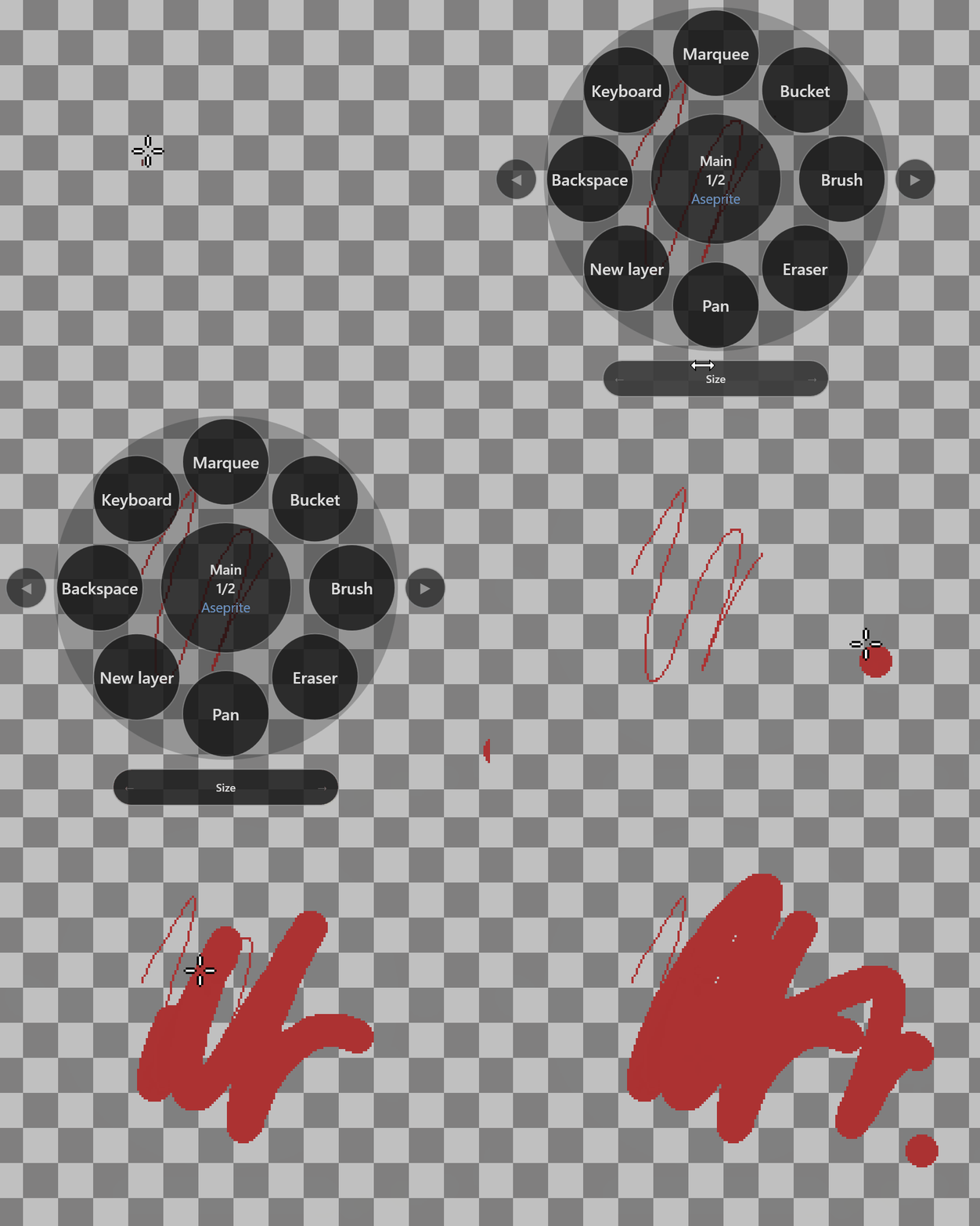
Slider/roller support. Basically sends hotkeys repeatedly over a step. Good for changing size of brushes, etc.
Tons of customization at your fingertips, err, pen tip.
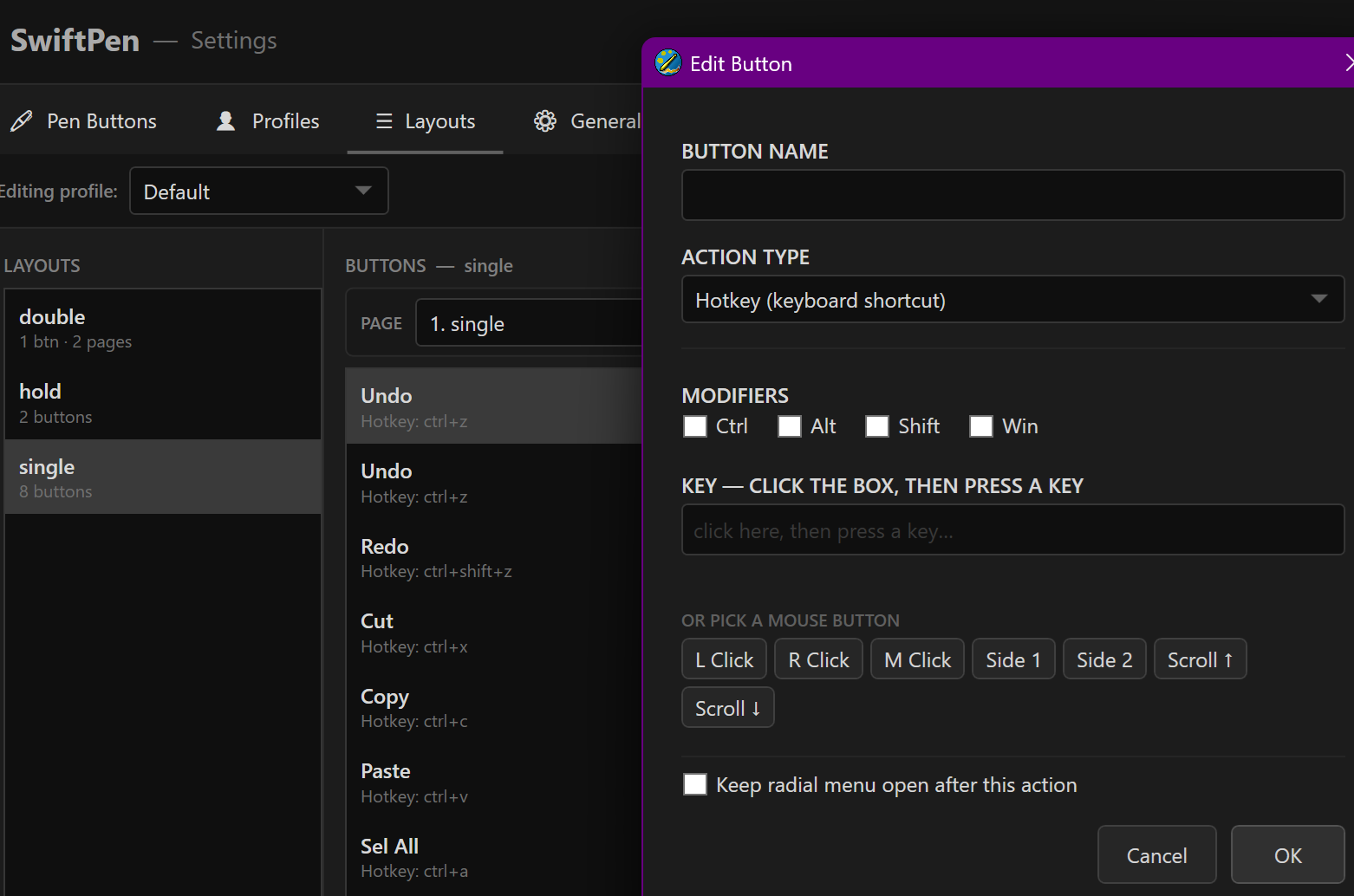
Sequenced Hotkeys
Installation Guide
1. Download and unzip.
2. Run installer
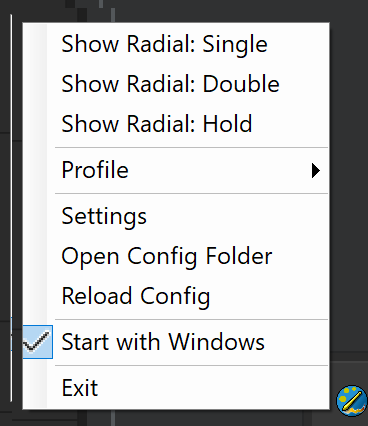
3. Open SwiftPen Settings → Pen Buttons (right click taskbar icon)
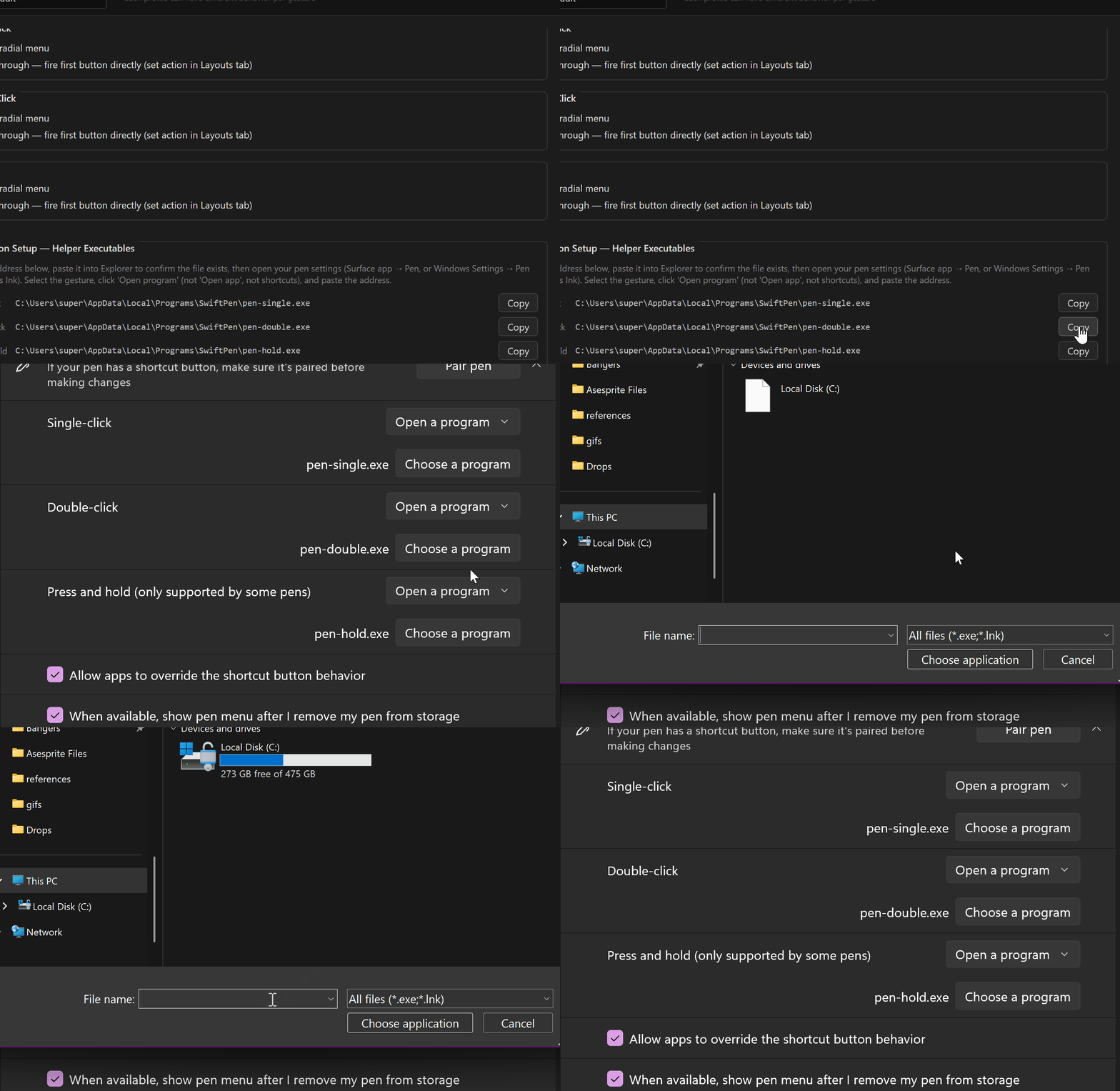
4. Copy the launcher path for single, double, or hold.
5. Open Windows Settings → Bluetooth & devices → Pen & Windows Ink, or the Surface app.
6. Set your pen gesture to “Open program”.
7. Paste the copied SwiftPen launcher path.
8. Repeat for single, double, and hold if desired.
Tip: If Windows does not detect the launcher immediately, launch the copied EXE once manually, or disconnect/reconnect the pen.
Optional install instructions.
Paste %LocalAppData%\Programs\SwiftPen\ into file explorer. Find the pen-single, double, hold executable and link it to your button pushes.
SwiftPen is a x64 program. So ensure you're running a 64bit version of windows.
It started as a personal tool for drawing and game development, especially for Aseprite and Surface Pen. If you run into issues, bugs, or have feature ideas, leave a comment below. I’m always improving it.
Notes
- SwiftPen is not a pen driver replacement.
- Some elevated/admin apps may not accept injected hotkeys from a non-admin instance.
- Haptics are not supported globally and are not required.
- Works best when your pen/tablet software can launch EXEs or shortcuts.
Third-party notice:
SwiftPen includes code derived from VirtualKeyboard.Wpf by Patryk Węgierski, licensed under the MIT License.
Source: https://github.com/PatWegierski/VirtualKeyboard.Wpf
The MIT License permits commercial use, modification, distribution, and private use, provided the copyright and license notice are included.
Purchase
In order to download this tool you must purchase it at or above the minimum price of $7 USD. You will get access to the following files:
Leave a comment
Log in with itch.io to leave a comment.